Quick Logging & AI Magic
- Siri & one-sentence logging: Hands-free! Just tell Siri "log an expense in Daily Trifles". The input box on the home screen (or voice) understands what you type:
• Basic: type "taxi 25" and it's saved.
• Choose an account: type "taxi 25 Alipay" and it's categorized automatically.
• Choose a date: type "yesterday taxi 25" to create yesterday's bill and scroll to that day. Specific dates like "Aug 1 2026 taxi 25" work too.
• Transfer: type "WeChat transfer to Alipay 100" to create a transfer.
- AI parsing: Activate it by entering an API key under Me → AI Engine. It handles very casual long sentences like "bought 50 worth of ribs at the supermarket and topped up 100 phone credit for my kid" — the AI splits them into separate bills like a butler!
- Your own keyword cheat sheet: Under Me → Categories, add keywords to subcategories (e.g. add "McDonald's" to "Dining"). Sentences containing those keywords will then be categorized precisely.
Detailed Manual Bookkeeping
- Multiple ledgers: Create multiple independent ledgers such as "Family", "Personal" and "Work", and add or manage them in "Me" → "Ledgers". You can switch ledgers in three places: the top-left of the stats panel at the top of the home page, the top-right of the manual entry page, and "Me" → "Ledgers". Each ledger's entries and stats are completely separate, so personal, business and other finances all stay neatly organized.
- Shared ledger: In "Ledgers" → "👥 Shared Ledger", keep one ledger together with your family (up to 3 people). See "Family Shared Ledger" 👆。
- Screenshot & quick logging: We've prepared powerful iOS-only shortcuts! Go to Me → Quick Logging Guide to set up Siri voice commands and back-tap screenshot logging. Amounts and categories are recognized automatically from WeChat Pay and Alipay receipts.
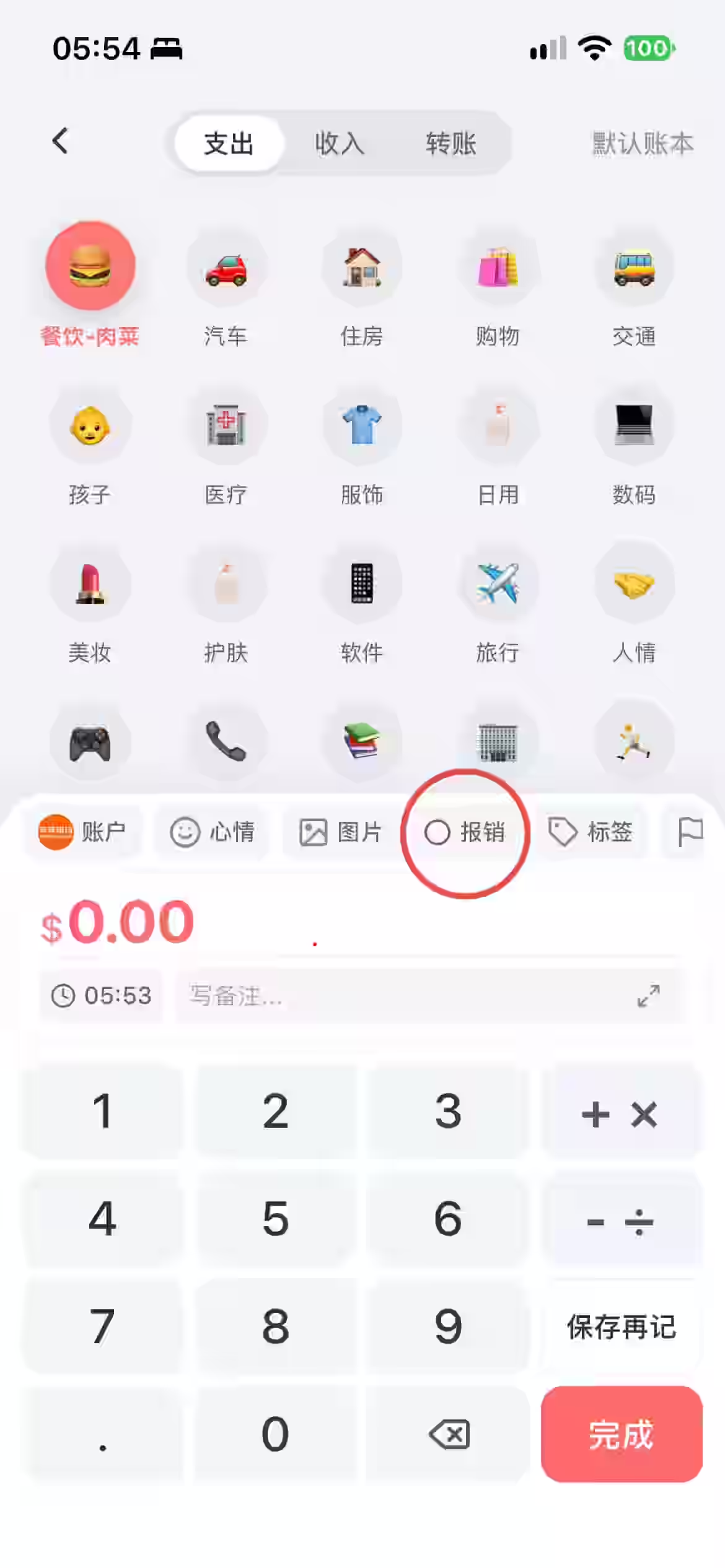
- Manual entry & calculator: Tap the
to open manual entry. First confirm or switch the funding account to the left of the date/time button. The amount keypad includes
+ - × ÷so you can add up several items; tap=for the total. - Smart quick-entry chips: When you tap "Add a note...", the app looks at your last three months of entries and offers a row of quick templates. Tap one and it fills in not only the note but also the amount, category and payment account — no more retyping your regular monthly bills!
- Transfers & excluded entries: Switch to "Transfer" at the top left to record movements that don't affect your totals. Special funds can go into a dedicated "excluded from income/expenses" account.
- Refunds: For returns and refunds, choose "Refund" in the bill details. The refund offsets spending in the matching category, so your stats reflect your true net spending.
- Loans & IOUs: Money lent, borrowed, deposits paid or received aren't income or expenses — they're tracked in separate IOU accounts. See the "Loans & IOUs" chapter.
Diary & Memories
-
Siri voice notes: Say "Siri, write in Daily Trifles" to write a diary entry hands-free!
💡 Heads-up: Siri hangs up if you pause for more than 0.8 seconds while dictating, so it works best while walking or driving, for fleeting ideas or short feelings。 - Long voice entries & focus mode: If you want to think out loud at length, tap the (or type more than 40 characters) to open the full-screen diary. Then tap the input box's bottom-right Record button to record audio for this entry; after writing you can also polish the text with AI in one tap! To turn speech directly into text, use your keyboard's built-in dictation.
- 🎙️ Diary audio: In the full-screen diary, tap the Record button at the bottom to open the recording panel. You can pause/resume anytime; tap "Done" to save. Each clip can be up to 5 minutes (a countdown appears in the last 30 seconds and it saves automatically). One clip per entry, up to 4 per day. You can play back or delete it, and play it right from the home screen, calendar, On This Day and search results, with 1.5× speed. Recording pauses automatically if you switch apps or get a call, and you can resume when you return. Audio is backed up to cloud storage and restored on a new phone just like photos, and included in ZIP exports. Filter search by "With audio" to find all entries with recordings.
- 🗂 Diary drafts: If you need to leave the full-screen diary halfway, choose Save Draft when you exit at the top left. If you close the app before saving, it's automatically saved as a draft next time. When you have drafts, a Drafts button appears at the top right of the full-screen diary (below the check mark), with the number of drafts; the button at the bottom right of the home screen also shows the draft count. Tap "Drafts" to see all of them and tap one to continue editing; once saved as a diary entry it's removed from drafts. Drafts are stored only on this device, aren't backed up to the cloud, and are limited to 20. Drafts aren't used when editing an entry that's already been saved. Long-press a draft to select several and delete them together.
- 📝 Transcribe audio (iPhone): In the full-screen diary, the audio bar has a Transcribe button. Tap it to turn the recording into text, which you can edit before saving. The transcript appears below the audio bar with a "Transcript" label, kept separate from the main text; you can edit or delete it later without affecting the recording. Recognition runs entirely on your phone and the audio is never uploaded. Transcripts are searchable and backed up with the diary. If you're told offline recognition isn't supported, turn on "Dictation" in iPhone Settings → General → Keyboard and try again.
- Photos & surroundings: Add up to 20 high-quality photos and 10 tags, plus a mood stamp. In the background the app quietly captures the weather and location, preserving the setting and mood of the moment.
- 📍 Location & weather: "Location · Weather" at the top of the full-screen diary can each be tapped to change. Tap Location to open the "Set Location" panel, where you can pick one of three levels (city + district / district / street address) or type it in; tap Use Current Location at the top right to switch to where you are now. Tap Weather to choose from 16 weather types and drag the slider to set the temperature; tap Refresh to look up the weather again for your current location. The ✕ next to location or weather removes that item.
- On This Day: When a memory banner appears on the home screen or the calendar icon sparkles ✨, you have memories today! Tap the banner (or open the calendar and tap
On This Day) to swipe through past days like flipping a book, and add entries for this day in the past five years.On This Day— the red number at the top right of the button is the number of past entries, and the small camera badge means there are photos from this day in past years. If your photo library has photos taken on this day in previous years, a photo tip appears at the top; tap it to see a full album grouped by year, and select photos to create a diary entry for that day. - Shake for Random Walk: In the calendar, tap
Random Walkto explore your past endlessly. Just shake your phone and, with a crisp haptic tap, the app reshuffles and pulls up a whole new moment from your past — like opening a surprise box! - Footprint Map: In the calendar, tap
Footprint Mapto retrace your memories on a map. Pulsing circles show how many entries you wrote in each place; tap one to open a "Memories Here" gallery of everything that happened there. - 🖼️ Diary Photos: In Me → Diary Photos, every photo from your diary entries is arranged by date, newest first, and you can filter by year and month at the top. Tap a photo to view it full screen and swipe left or right to browse; long-press a photo to view its diary entry, save it to your photo library, or share it.
- 💡 Find photos fast: When editing On This Day, Random Walk, or adding an old entry, tapping "Add photo" copies that day's date to your clipboard. Paste it into your Photos search box to find that day's photos instantly!
Home Dashboard & Stats
- Three dashboards: The floating dashboard at the top of the home screen can be swiped left or right to switch between Diary, Income & Expenses and Assets. Tap it to open the full-screen stats.
- AI summaries & monthly reminders: The app uses an adaptive Map-Reduce approach. On the 1st of every month, a memory capsule appears at the top of the home screen (it disappears once read). AI turns your month's ups and downs into a heartwarming "Letter from Time", and at year end it distills 12 months into an "Annual Report"! If you miss the capsule, open it anytime from the Month/Year view of the diary stats — cached results load instantly at no cost.
- Echoes of Time (diary mode): More than cold numbers — a streak module sums up your consecutive days, total words and photos. When there's an On This Day memory, you'll also get a floating reminder and a sparkle on the calendar.
- Private finances (bookkeeping mode): Shows this month's spending, income and balance at a glance, plus a privacy eye to hide amounts with one tap — browse safely in public.
- AI spending insights (bookkeeping mode): Tap the "Smart Spending Insights" banner on the stats page and an AI reviews your spending from multiple angles, giving you a professional report with key patterns, potential financial risks, optimization suggestions and encouragement. Tap "Refresh" at the top right anytime to regenerate it with your latest transactions.
- Multi-angle views: View reports by week, month, year, all time or a custom range, with automatic daily/monthly averages and clear spending trends.
- Budgets & overspending alerts: Set a budget for total monthly spending or for individual categories, with a live progress bar on the stats page. When you're close to or over budget, a gentle alert appears on the home screen to help you rein it in.
- Automatic currency conversion: Whatever currency your accounts use, spending and assets are converted and totaled automatically based on your Base Currency and the latest exchange rates. Change the base currency via "Base currency ▾" at the top right of Me → Accounts; all past bills are then re-converted at the latest rates.
- Live net worth: Tap the Assets dashboard on the home screen or go to Me → Accounts to see your total assets, liabilities and net worth at a glance. Long-press and drag account cards to reorder them.
Savings Plans & Goals
- Five ways to save: Four classic modes — Flexible (deposit and withdraw anytime), Fixed Amount, 52-Week and 365-Day — plus Time Deposit for bank fixed deposits. Whether it's a car fund or a travel fund, there's one for you.
- Real transfers, seamless bookkeeping: When you check in or deposit, a real internal transfer from the "from" account to the "savings" account is created automatically. If the two accounts use different currencies, it's converted at the current rate so your assets stay exact.
- Automatic check-ins & progress: Progress bars show "Saved" and "Remaining" in real time. Complete a period and you'll get a confetti animation, and the next date is calculated automatically.
- Flexible deposits, withdrawals & archiving: Flexible mode lets you deposit and withdraw anytime (money returns to where it came from). Plans that reach their goal are marked as achieved, and plans on hold can be archived with one tap.
🏦 Time Deposits
- Create: Choose "Time Deposit" and fill in the name, holding account (which card it's under), start date, principal, term (days/months/years), interest rate (annual/monthly/daily), payout method and maturity option. The maturity date and expected interest are calculated live at the bottom.
- Holding account: The deposit is treated as sitting under this card, so starting it or moving it to savings creates no transfer — only interest income is recorded. For a different card or currency, record a "Transfer" first, then create the deposit.
- Payouts & interest: Supports lump-sum at maturity and daily, monthly, quarterly or yearly payouts. Interest is recorded as "Investment - Returns" income; daily interest accumulates and can be posted in one go anytime.
- Maturity: When a deposit matures within 3 days or has matured, a red dot appears on Savings in Me. At maturity you can move it to a savings account, renew the principal, or renew principal plus interest — one confirmation creates the records. You can also withdraw early, and undo the most recent action.
Debts
- Why track them separately: Lending money to a friend or paying a rental deposit isn't spending — the money is just with someone else for now and will come back. So loans are recorded in separate IOU accounts, excluded from income/expense stats and budgets; what others owe you counts toward total assets, what you owe counts toward liabilities, so your net worth stays accurate.
- Four types: Receivables are "Lent" (money you lent to someone) and "Other receivable" (deposits paid, money you fronted for others); payables are "Borrowed" (money you borrowed) and "Other payable" (deposits received, advance payments received).
- How to create: Tap Me → Loans, or Accounts → Loans & IOUs, then tap a button such as "Record a loan". Fill in the other party, amount, date and due date, and attach an IOU or transfer screenshot if you like. If you choose a funding account, the money moves out of (or into) it and its balance updates; leave it blank to just record the loan without touching other accounts — handy for logging old ones.
- Follow-ups: Do these in the loan's details. "Receive / Repay / Recover / Refund" can be split into several payments and don't count as income/expenses; "Add more" records another amount lent or borrowed; "Interest income / Interest expense" count as income/expenses without affecting principal; "Write off" (can't be recovered — counted as an expense, not against your budget) and "Debt forgiven" (the other party says you needn't repay — counted as income); when a deposit covers rent or a down payment becomes the purchase price, use "Convert to expense / Convert to income"。
- Automatic settlement: When the amount outstanding reaches zero it's marked as settled and hidden from the Assets home, but you can find it under "Settled" in the overview. Adding another amount reopens it automatically.
- Overview & reminders: The overview has Receivable and Payable tabs, each viewable by Open / Settled / By person, so you can see at a glance who owes you what and whom you owe. When a loan is overdue or due within 3 days, a red dot appears on the Loans button in Me.
- Example: Wang borrows 2,000 and repays it in three installments: create a "Lent" entry, tap "Receive" each time he pays, and it's settled automatically at the end. You paid a 3,000 rental deposit and 500 was deducted when you moved out: create an "Other receivable", "Recover" 2,500 at move-out, and use "Convert to expense" for the remaining 500 as rent or repairs.
Detailed Budgets
- Three time frames: View budgets and remaining amounts by week, month or year. The main progress bar changes color: orange at 80% spent and bright red over 100%.
- Category and subcategory budgets: Besides the total, tap any category or subcategory in the list to set a limit (e.g. just for "Dining - Coffee") and keep every kind of spending in check.
- Smart refunds & filtering: The budget engine is strict: internal transfers, balance adjustments and bills marked "Exclude from budget" are left out automatically. If a purchase is refunded, it's counted as net spending and the refund goes straight back into your available budget.
- Set as default: Budgets about the same every month? Tap "Set as default" at the top of the monthly budget view and future months will use it automatically.
Recurring Bills & Installments
- Two kinds of automatic bills: Switch between Recurring and Installments at the top of the panel to manage all your automated transactions in one place.
- Recurring (automatic charges): For fixed costs like rent, utilities and subscriptions, just set the frequency (daily/weekly/monthly/quarterly/yearly) and when it ends (a date or number of times). When the time comes, the bill is recorded for you automatically.
- Installments (credit card / pay later): Bought something big in installments? Enter the total and number of installments (e.g. 6 or 12) and a detailed repayment schedule is generated. Four fee modes are supported (none / total fee / fee per installment / monthly rate), and you can see each installment's principal and interest at a glance.
- Pay off early or pause anytime: If you have extra cash, you can pay off an installment plan early, or pause a recurring bill anytime. After that no new bills are created, while bills already created stay untouched.
Reimbursement Tracking
- To-do and done boards: Just turn on "Reimbursable" when logging and the bill shows up here. It's split into "Pending" and "Reimbursed" so you can keep track of every amount you've fronted.
- Partial & multiple reimbursements: A big business trip can be reimbursed in several parts! The app subtracts the amount already reimbursed from the bill's net amount to show exactly how much is left, so nothing is counted twice.
- Search to find it: The list has a powerful search. Enter a category, note, amount or even a custom tag (e.g.
#business-trip) to instantly find the bill you need to reconcile. - Automatic currency conversion: When totaling a month, whatever currency you paid in, the app converts each bill to your base currency using its snapshot, showing the month's total reimbursement clearly.
Handy Notes & Reminders
- Your everyday assistant: Over a dozen categories — birthdays, bills, car maintenance, habits, medication and doctor visits — take care of the little things that are easy to forget. Full support for Gregorian and lunar calendars.
- Flexible repeat cycles: Besides daily, weekly and monthly, there are cycles tailored to everyday life such as "every two months (utilities)", "every three months" and "every six months (dental cleaning/car service)" — set it once and you're done.
- Home capsule & calendar: Important reminders due today appear as a blue capsule at the top of the home screen (it disappears once you've viewed it). All upcoming reminders also show a small icon in the calendar.
- Reliable system notifications: Scheduling runs entirely on your device. Even if the app is fully closed and you're offline, the notification still pops up on time.
Assets & Item Inventory
- Digitize your belongings: From pricey electronics to everyday medicine and food in the fridge, add anything to your inventory with quantity, purchase date and price, and keep track of everything you own.
- Organized tabs: Switch between Items (all items), Categories and Spaces with one tap.
- 7-day expiry radar: For food, supplements, cosmetics and other items with a shelf life, add an expiry date. When something expires within 7 days or has expired, a banner appears at the top of the home screen!
- Add your own: At the end of the Categories and Spaces views there's a dashed
+button for adding new spaces or item categories.
Backup & Restore
- Five cloud options: iCloud, WebDAV (get a free WebDAV account from providers such as Jianguoyun、InfiniCLOUD or Koofr and others — or connect your own Nextcloud or Synology NAS,Tap for the detailed setup guide👆), Baidu Netdisk, Google Drive and OneDrive all support incremental background backups. Use whichever and however many you like.
- WebDAV backup folder: Enter the server address as shown in the setup guide (for Jianguoyun: https://dav.jianguoyun.com/dav/) — no need to add a folder yourself; the app automatically adds a triflesbackup folder at the end. iPhone and iPad create this folder automatically; on Android, first create a folder named triflesbackup (all lowercase) on the drive's website, otherwise connecting will fail with a permission error.
- Automatic daily backups: Whenever there's new data, each connected cloud backs up quietly on its own schedule (opening the app, returning to it or sending it to the background can all trigger this). 💡 Note: backups only run while the app is in the foreground. When the cloud logo next to your avatar is blinking, a backup is in progress — please don't swipe the app away。
- Manual export & restore: Under Me → Backup & Restore you can export all your data as a
JSONfile anytime, or as a backup package with photos (PDF、ZIP) saved to your device. After switching phones or reinstalling, restore from any connected cloud in one tap or import a local backup file. - Import from other diary apps: In Me → Backup & Restore → Export/Import, tap "Import from other diary apps": Day One — choose its exported archive (Day One Settings → Import/Export → Export Day One JSON [ZIP]); entries are imported with photos, time, location and weather; 一本日记 (Yiben Diary) — choose its exported
.txtfile and it's split into entries by date (TXT has no photos); 一叶日记 (Yiye Diary) — choose the zip from Settings → Data Management → Export Markdown; text, time, address and photos are imported together. Importing the same file again won't create duplicates. - Multi-device live sync — more than a backup, a ledger that goes with you: If you use more than one device (e.g. phone + tablet, or moving between old and new phones), turn this on and edits sync between them almost in real time, instead of waiting for the regular backup schedule.
- New devices detect your main cloud: If your other devices already have a main cloud set, turning this on on a new device detects it and asks whether to match — no need to decide again on every device.
- 💡 Want to keep books with your family? Real-time multi-device sync is for your own devices and syncs all your data, including diaries. To keep books with your family, use "Family Shared Ledger" 👆: only the chosen ledger is shared, and diaries and other personal data stay private.
- Advanced — multi-cloud mirroring / push to all clouds now: If you want every connected cloud kept as up to date as possible (not just the main one), turn on "Multi-cloud mirroring" in the advanced options of Multi-device live sync; or tap "Push to all clouds now" anytime to trigger a full sync manually. Both are advanced options that noticeably increase requests — most people don't need them, so leaving them off is fine.
📱 Switching Phones
- Option 1: Cloud backup → restore on the new phone (recommended): On the old phone, go to Me → Backup & Restore, pick a connected cloud and back up once; it's done when the cloud logo next to your avatar stops blinking. On the new phone, install Daily Trifles and connect to the same cloud account, then tap "Restore from XX" to bring back your text, photos and settings. No file transfer needed, and it works between iPhone and Android. 💡 Note: iCloud only works between Apple devices; for iPhone → Android choose WebDAV, Baidu Netdisk, Google Drive or OneDrive.
- Option 2: Export a backup → send it to the new phone → import: Use this if you'd rather not use the cloud or have no internet. On the old phone go to Me → Backup & Restore → Export/Import, choose "Backup package (ZIP)" and tap "Export Data", then send the archive to the new phone from the share sheet. On the new phone open the same page, tap "Choose a Daily Trifles backup file", select the archive and tap "Import Data".
- Sending the archive to the new phone: Between iPhones, AirDrop is easiest; between Android phones use Quick Share, Huawei Share, or the built-in transfer of brands like Xiaomi / OPPO / vivo; between iPhone and Android install the free LocalSend on both, or go through cloud storage or a computer. WeChat / QQ limit file sizes, so they're not recommended for backups with lots of photos.
- Split backup packages: With lots of photos, the export is split into several smaller packages. Send All of them to the new phone and select all parts together when importing — missing any one will lose some photos.
- Safe to repeat: Restoring and importing merge with data already on the new phone — nothing is wiped, and restoring or importing the same data again won't create duplicates. After switching, check your account balances and recent entries on the new phone before clearing the old one.
Family Shared Ledger
- Keep one ledger with your family: Up to 3 people share one ledger. Everyone records on their own phone, and new entries show up on the others' phones in about a minute; the name of whoever recorded each entry appears next to its time.
- Only this ledger is shared: Only expenses and income in the shared ledger are synced. Diaries, other ledgers, accounts, memos, items and other personal data are never shared and never appear on your family's phones.
- Set up a dedicated Jianguoyun account: Shared data is stored on a WebDAV drive your family uses together. We recommend registering a new Jianguoyun account just for the shared ledger, and generating an app password on the Jianguoyun website (Tap for the detailed setup guide👆). The WebDAV address must include a folder name, e.g. https://dav.jianguoyun.com/dav/jmsp/ (use English letters or numbers for the folder name). If you create the shared ledger on an iPhone or iPad, the folder is created automatically if it doesn't exist; if you create it on Android, first create the folder on the Jianguoyun website. Family members joining later don't need to deal with the folder. Don't use the account you use for personal backups — the app will refuse it.
- Create a shared ledger: Go to "Me" → "Ledgers" → "👥 Shared Ledger", choose "Create", and enter the ledger name, WebDAV address, account and app password. Once it's created, tap "Copy invite code" and send it to your family.
- Join a shared ledger: Family members switch to "Join" on the same page and paste the invite code — no Jianguoyun account needed. Codes forwarded through chat apps still work even with extra text around them. The invite code contains the shared drive's account and password, so only share it with people you trust.
- Everyone edits only their own entries: Entries recorded by others are view-only — editing, deleting, favoriting and pinning are blocked. When you delete your own entry, it's deleted on your family's phones too.
- Accounts stay separate: Your entries come out of your own account balances as usual; your family's entries only show the name of the account they used and never affect your accounts.
- Not available in shared ledgers: Transfers, loans, savings plans, installments, refunds, reimbursements, budgets and recurring entries can't be used in shared ledgers, and their options are hidden. Transfers recorded with Shortcuts or Siri while in a shared ledger go to the default ledger instead.
- Stats by member: Open the Stats page in a shared ledger to see each member's expenses, share and income for the selected period.
- How often it syncs: While the app is open it syncs about once a minute, slowing to every 3 minutes after 10 minutes with no changes. Returning to the app or tapping "Sync now" on the shared ledger page syncs right away. When family members add entries you'll see "xx added n new entries". Nothing syncs while the app is in the background.
- Sync status: The shared ledger page shows when it last synced. If the shared drive's account or password stops working, the "Shared" badge in Ledgers turns into a red "Sync failed".
🚪 Leaving and switching phones
- Leave the shared ledger: Tap "Leave shared ledger" on the shared ledger page to free up your spot. The ledger becomes a regular ledger on your phone and all existing entries stay. Entries you recorded remain visible to other members, including anyone who joins later. You need to be online to leave.
- Switching phones: Shared ledger entries are included in your personal backup, so they come back when you restore it on a new phone. The shared drive account isn't in the personal backup, though, so you'll need to join again with the invite code. Rejoining recognizes you as the same member and doesn't take an extra spot.
- Limits: Each shared ledger has up to 3 members, and each person can join only one shared ledger at a time.
Data Security & Privacy
- Offline first: Log expenses and write in your diary even without internet (e.g. on a plane or train) — no feature requires a connection.
- Local first, your data is yours: Your bills and diary are encrypted and stored only on your phone by default. We don't run any central server that reads your data; cloud backups use your own cloud account, so your data always stays in your hands.
- Secure sign-in & transfer: iCloud, WebDAV, Baidu Netdisk, Google Drive and OneDrive all connect directly to your own account using each provider's official encrypted protocols. Sign-in credentials are stored only on this device and never pass through any third-party server.
- App Lock: Supports a 4-digit passcode, Face ID and fingerprint unlock, and can lock after you've been away for a few minutes — keeping prying eyes out.
- Permissions only when needed: Location, photos, notifications and other permissions are only used when you use related features (e.g. diary surroundings, reminders) — nothing is collected in the background without permission.
Advanced Tips
- Double-tap to zoom: Double-tap a text bubble on the home screen to enlarge it full-screen — great for reading long entries.
- Long-press for menu: Long-press a bubble to edit, copy, delete, share, favorite, pin or read it aloud.
- Multi-select: In the long-press menu tap "Select" to enter multi-select mode, then delete in bulk or copy multiple days' entries together。
- Powerful search: The search box at the top right of the home screen is more powerful than you'd think! Besides text and tags, you can search exact amounts (e.g. "25"), Location you've recorded, or even natural dates (e.g. "June 1" or "June 2026") — it understands you instantly and finds every detail from your past!
- Jump back to the latest: When browsing old records on the home screen, just tap the X next to the year/month picker at the top left, or tap the input box at the bottom to jump straight back to today's latest entry — no endless scrolling!
- Pinch to zoom photos: Pinch to zoom when viewing photos, and long-press a photo to save it to your library.
- Friendly reminders: Turn them on in Settings. Besides gentle nudges to log, the app can open a "Daily Review" at a set time and notify you when you have On This Day memories.
- Daily receipt: In the calendar tap "Today's Receipt" ("Day's Receipt" when another date is selected) to lay out that day's bills as a thermal-paper style receipt: details, category totals, total spending/income, balance and diary count at a glance. Switch to spending or income only, edit the subtitle, and share or save it to your photos in one tap.
- Add thoughts anytime: Tap "📝 Add thoughts" at the bottom of a diary bubble to add reflections or updates without changing the original text.
- Credit card payment reminders: When creating a credit account under Accounts, set a payment due date! You'll be reminded before it's due so you never miss a payment.
- 📱 iPhone Home Screen widgets: Long-press an empty area of the Home Screen → Edit at the top left → Add Widget (on iOS 17 and earlier, + at the top left) → search "Daily Trifles" to add: Overview、Quick Entry (Log / Diary), On This Day、Random Walk、Reminders。
🔒 Lock Screen widgets: Long-press the Lock Screen → Customize → Lock Screen → tap the area below the time and search "Daily Trifles".
🤖 Android home screen widgets: Long-press an empty area of the home screen → Widgets → find "Daily Trifles" to add Overview、Quick Entry、On This Day、Random Walk、Reminders; you can also add them in one tap under Me → Widgets.
See Me → Widgets for illustrated steps. - 🎁 Hidden extras:
📸 Quick camera: On the home screen, diary and manual entry screens, long-press the photo button to open the camera instantly!
FAQ & Tips
1. How do I add past diary entries or old bills?
There are two flexible ways, for different situations:
Method 1: Add a single entry (quick edits)
Open the
diary or the
manual entry panel, and tap the date & time at the top or left to change it to a past day. Once saved, the entry is filed under that date.
Method 2: Time machine mode (for filling in a whole day)
Tap the calendar icon at the top left of the home screen, select the day you want to fill in, and tap "Backfill" at the top right. A "⏳ Backfilling" banner appears at the top of the home screen. From then on, whether you send a quick sentence, log manually or write a diary entry, everything "travels back" to that day! When you're done, tap "Exit" on the banner to return to the present.
You can also backfill bills from the home input box, e.g. type "Aug 1 2025 taxi 50" to add a bill on August 1.
2. How do I edit a diary entry or bill I've already posted?
Edit the whole entry: Long-press the bubble on the home screen and choose "Edit" from the menu.
Edit one item in a bill: If a bill contains several categories (e.g. groceries and a taxi), no need to redo it! In the bubble, just tap the matching category chip to open the editor and change that item's amount or category.
3. How do I delete one item from a bill?
Tap the category chip in the bubble to open the editor, tap the 🗑️ trash icon at the top right and choose "Delete item". If every item in the bubble is deleted and there are no photos, the whole bubble disappears from the timeline.
4. I have lots of old entries — how do I find things quickly?
Tap the 🔍 magnifier icon at the top right of the home screen to search by keyword, or tap your frequent #tags below to filter. The "Diary" and "Bills" tags show only diary entries or only bills.
5. How do I get and set up an AI API key?
One-tap API key setup is under active development — stay tuned!
For now, please go to the official site of SiliconFlow, Zhipu, DeepSeek or Groq to register and get a free API key.
Then enter and save it under Me → AI Engine in the app to unlock AI-powered quick logging.
6. Where is my data stored? Can it be lost?
Daily Trifles is offline-first: all your data is encrypted and stored on your phone by default, and we have no central server that could access your privacy. Be sure to turn on automatic backups to iCloud, WebDAV, Baidu Netdisk, OneDrive or Google Drive in Settings, so losing your phone doesn't mean losing your data.
7. Why does photo upload sometimes fail?
To keep the app smooth and save storage, you can upload up to 20 photos per day, and they're compressed in the background. If you hit the limit, please try again tomorrow.
8. How do I find entries I've favorited or pinned?
Pinned: Tap the 🔍 search button at the top right of the home screen. Without typing anything, the search page becomes your personal board showing everything you've pinned.
Favorites: On the same search page, the quick tag bar below has a fixed "#Favorites" tag — tap it to show all your favorite memories and bills.
9. How are the total days in "Echoes of Time" counted?
As long as you leave any trace in the app on a day — even a tiny bill or a one-line diary entry — that day counts. Log a little every day and see how long your streak can grow!
10. The text in chat bubbles is too small — what can I do?
Go to Me → Theme and turn on "Follow system text size" — the app will follow the large text size set on your phone (including senior mode). For finer control, turn it off and drag the slider below to adjust the bubble text size.